How to Use Your Volvo XC90?

New Volvo, unfamiliar dashboard, and a start knob that isn’t quite where you expect it — here’s everything you need to feel at home in your XC90 within your first week of ownership.
This covers the core basics every new XC90 owner needs first: starting the vehicle, using the key fob, picking a drive mode, and finding your way around climate and infotainment. Think of it as the crash course before you dig into your specific trim’s deeper features.
TL;DR
- Starting the vehicle: hold the brake pedal and turn the start knob clockwise into position I.
- Key fob: one button locks everything (doors, fuel filler door, tailgate, alarm); another unlocks it all and disarms the alarm.
- Drive modes: your XC90 always starts in Comfort mode — switch between Comfort, Eco, Off Road, Dynamic, and Individual using the control in the center console.
- Infotainment: the center display’s Home view is your hub for Navigation, Media, and Phone — CarPlay and Bluetooth can’t run simultaneously.
- The full Owner’s Manual lives on the center display itself — tap Top view, then Owner’s Manual, if you ever need more detail than a quick guide covers.
How to Start the Vehicle
Volvo’s start sequence is simple but not identical to a traditional key-and-ignition setup, so it’s worth knowing before your first drive.
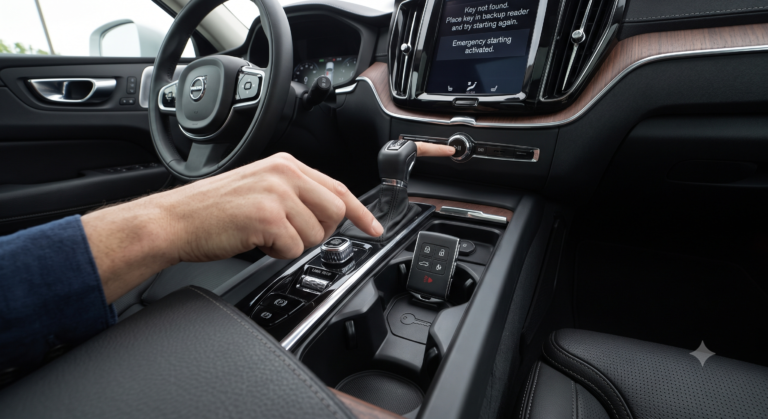
<cite index=”97-1″>The start knob is used to start the vehicle — turn it clockwise and release it into ignition position I</cite>. <cite index=”97-1″>To actually start the engine, hold the brake pedal depressed while turning the start knob clockwise</cite>. Switching the vehicle off works in reverse, simply turning the knob back.
Quick Tip: If the knob doesn’t turn or the car won’t start, make sure your key fob is inside the vehicle — the XC90 needs to detect it nearby, not just have it in your pocket outside the car.
Understanding Your Key Fob
Your key fob does more than lock and unlock the doors — it’s also your gateway to a few convenience features worth knowing from day one.
<cite index=”99-1″>The lock button on your remote key locks the doors, fuel filler door, and tailgate, and arms the alarm</cite>, while <cite index=”99-1″>the unlock button reverses all of that and disarms the alarm</cite>. <cite index=”99-1″>There’s also a separate button that unlocks the tailgate specifically, without opening or unlocking the rest of the vehicle</cite> — handy when you just need to grab something from the trunk without disarming everything else.
<cite index=”99-1″>Pressing and holding the panic button for about five seconds sounds the alarm, and you can turn it off again by pressing the unlock or lock button twice</cite>. <cite index=”99-1″>An automatic relock also happens if no door or the tailgate is opened within two minutes of unlocking</cite> — so don’t be surprised if the car quietly re-locks itself while you’re still digging for your keys in a bag.
Choosing a Drive Mode
Drive modes let you tailor how the XC90 feels and responds without touching any mechanical settings yourself — everything adjusts through software.
<cite index=”97-1″>Drive modes are selected using the control in the tunnel console, and the vehicle always starts in Comfort mode by default</cite>. <cite index=”97-1″>Press in the control and roll it to choose between Comfort, Eco, Off Road, Dynamic, and Individual in the center display, then confirm by pressing the control again</cite>.
<cite index=”97-1″>Individual drive mode lets you customize a mode’s specific characteristics to your own preferences</cite>, rather than being locked into one of the preset personalities. If you find yourself wanting Eco’s throttle response but Dynamic’s steering feel, Individual mode is where you’d build that combination.
| Drive Mode | Best For |
|---|---|
| Comfort | Everyday driving; the default every time you start the car |
| Eco | Maximizing fuel/energy efficiency |
| Off Road | Low-traction or unpaved terrain |
| Dynamic | A sportier, more responsive feel |
| Individual | Custom-tailored combination of settings |
Expert Insight: Since the XC90 always resets to Comfort mode at startup, don’t assume your preferred Eco or Dynamic setting carried over from your last drive — it’s a quick re-select each time if you have a strong preference.
Getting Around the Infotainment System
The center display is command central for nearly everything beyond driving itself, and it’s built around a simple home-screen structure.
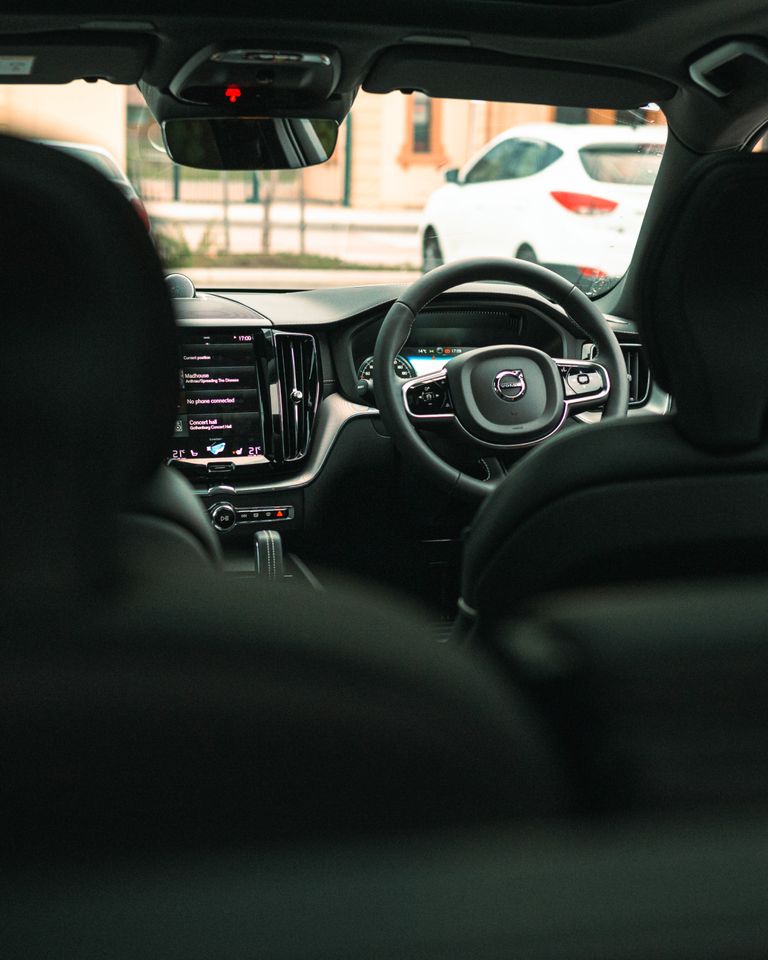
<cite index=”97-1″>When the center display starts up, it shows the Home view, from which you can access tiles for Navigation, Media, and Phone</cite>. <cite index=”97-1″>Tapping Navigation gets you into Sensus Navigation, where you can enter a destination using a free-text search</cite>.
If you’re connecting your phone, know upfront that you’ll need to pick one connection method at a time. <cite index=”97-1″>Bluetooth is deactivated whenever CarPlay is in use</cite>, and <cite index=”97-1″>you can use WiFi or the vehicle’s own modem if you’d like to connect the car to the internet independent of your phone</cite>. <cite index=”97-1″>You can make and receive calls through a Bluetooth-connected phone, or handle calls using voice commands via the voice control button</cite>.
Quick Tip: <cite index=”97-1″>Map updates for built-in navigation are available by tapping Download Center in the app view</cite> — worth checking periodically so your navigation data doesn’t drift out of date.
Climate Control and Wipers
These are the small, everyday controls you’ll use more than almost anything else in the car, so they’re worth learning early.
<cite index=”97-1″>The climate view is accessed by tapping the icon at the center of the climate bar along the bottom of the center display</cite>. <cite index=”97-1″>Tapping AUTO in climate view hands over automatic control of several climate system functions</cite>, including air recirculation, so you don’t need to micromanage vents and fan speed yourself.
For wipers, the XC90 includes automatic rain sensing on most trims. <cite index=”97-1″>The system detects moisture on the windshield and starts the wipers automatically when needed, and you can turn the thumb wheel up or down to adjust wiper sensitivity</cite>. <cite index=”99-1″>The rain sensor itself has its own on/off toggle, indicated by a green LED when active</cite>.
Where to Find More Detail When You Need It
This guide covers the fundamentals, but the XC90 has considerably more depth than any single article can capture — and Volvo makes the full documentation easy to reach without leaving the car.
<cite index=”104-1″>The complete Owner’s Manual is accessed from Top view on the center display — tap Owner’s Manual, then Categories, then tap any article to open it</cite>. <cite index=”95-1″>Some manual pages include interactive markers you can tap to reveal links to related sections, and certain pages include short introductory animations to preview what that section covers</cite>.
Real-world scenario: You’re three weeks into ownership and can’t remember how to fold the third-row seats. Rather than searching online, pulling up the on-screen Owner’s Manual and searching “third row” gets you the exact, model-year-specific instructions faster than most web searches would.
Pros and Cons by Owner Type
The First-Time Volvo Owner
- ✅ The on-screen Quick Guide and full manual cover nearly everything without needing outside sources
- ✅ Drive modes are simple to experiment with — nothing you select is permanent or hard to undo
- ❌ The start knob and drive mode dial take a session or two to feel intuitive if you’re coming from a traditional key-and-shifter setup
The Family Hauler
- ✅ Key fob’s separate tailgate-only unlock is genuinely useful for quick grocery or stroller access
- ✅ Automatic climate and rain-sensing wipers reduce the number of things you need to manage while driving with kids in the car
- ❌ Comfort mode resetting at every startup means adjusting settings again if you have strong preferences
The Tech-Focused Owner
- ✅ CarPlay, Bluetooth calling, and voice control cover most connectivity needs out of the box
- ❌ CarPlay and Bluetooth can’t run simultaneously, so you’ll need to pick one connection method per drive
Frequently Asked Questions
Do I need to press the brake to start my XC90? Yes — holding the brake pedal down while turning the start knob clockwise is required to actually start the engine, not just to turn on accessory power.
Does my XC90 remember my last drive mode? No. The vehicle always starts in Comfort mode by default, regardless of what mode you were in when you last turned it off.
Can I use both Bluetooth and CarPlay at the same time? No — Bluetooth is automatically deactivated whenever CarPlay is active, so you’ll need to choose one connection method per drive.
Where can I find the full owner’s manual? It’s built into the car itself — access it from Top view on the center display, then tap Owner’s Manual and browse by category.
Why did my car relock itself after I unlocked it? This is an automatic security feature. If no door or the tailgate is opened within two minutes of unlocking, the XC90 relocks itself automatically.
Key Takeaways
- Start the car by holding the brake and turning the start knob clockwise into position I.
- Your key fob locks/unlocks everything at once, plus a separate tailgate-only unlock button.
- Drive modes always reset to Comfort at startup — re-select Eco, Dynamic, or Off Road each time if you have a preference.
- CarPlay and Bluetooth can’t run together — pick one per drive.
- The full Owner’s Manual lives on the center display, searchable by category, for anything this quick guide doesn’t cover.
Next step: Spend five minutes exploring the on-screen Owner’s Manual under Top view — it’s the fastest way to find model-year-specific answers for whatever this guide didn’t cover.
- Series anchor note: No conflicts with existing anchors. This piece is consistent with and can serve as a general entry point for prior CarPlay, remote start, and semi-automatic transmission anchors established earlier in the series.