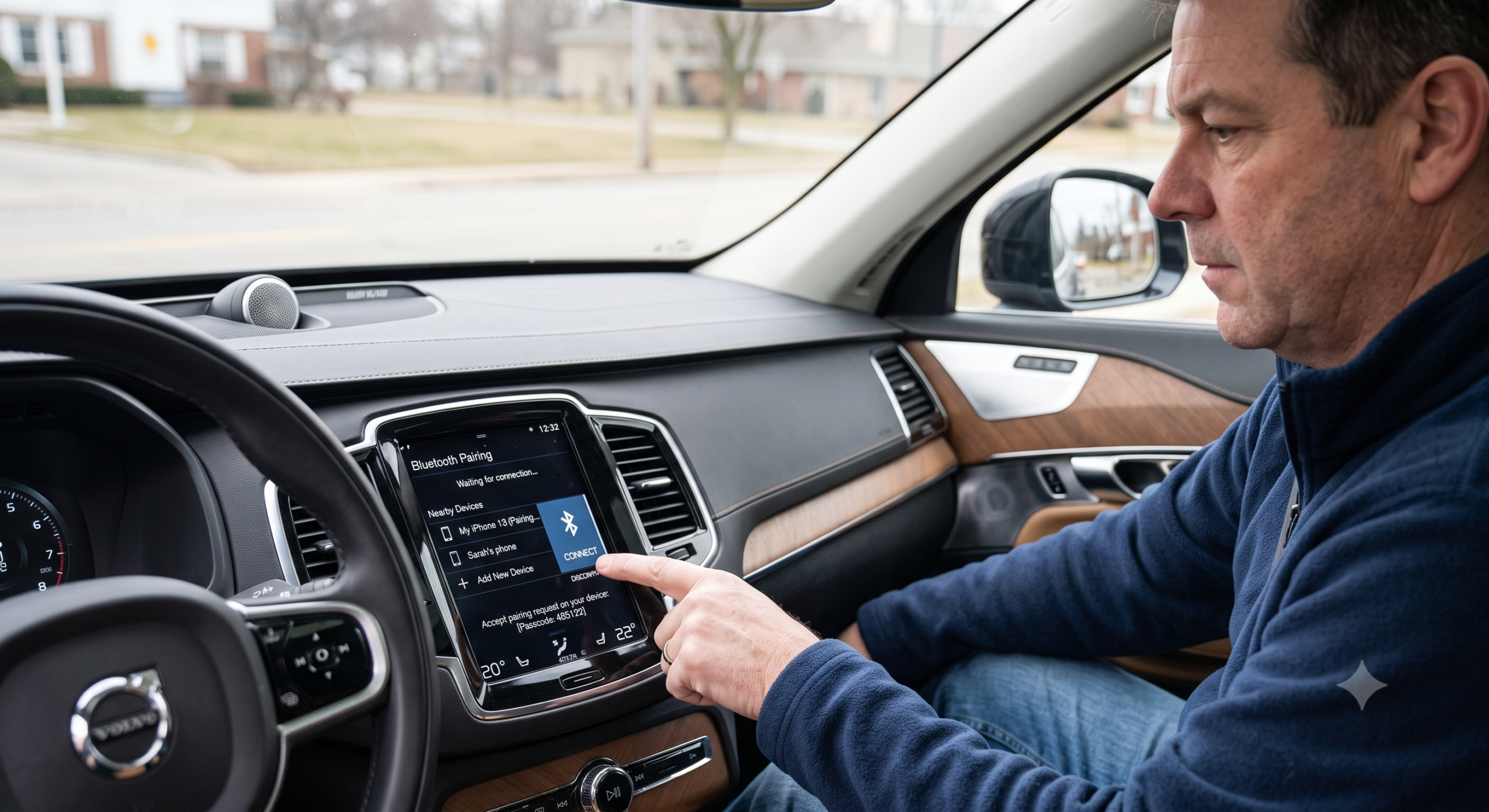
How to Connect Bluetooth to Your Volvo XC90?

Three different XC90 generations, three different infotainment systems, three slightly different Bluetooth menus — and somehow every “how to pair your phone” guide online assumes you have the one they tested on.
TL;DR
- Which steps apply to you depends on your infotainment system: pre-2016 (non-Sensus), 2016–2022 (Sensus Connect), or 2023-and-newer (Google built-in).
- All three use the same basic dance: make the car discoverable, find it on your phone, confirm a matching code on both screens.
- Pairing only has to happen once per phone — after that, your XC90 reconnects automatically whenever it’s in range with Bluetooth on.
- Most connection failures come from a full device list, an outdated software version, or a phone mid-update — not a hardware problem.
- If your phone won’t show up at all, deleting the car from your phone’s Bluetooth list and starting fresh usually clears it.
How to Connect Bluetooth to a Volvo XC90
Find your infotainment system first — the menu path is genuinely different depending on which one your XC90 has. A Volvo owner and infotainment troubleshooting writer who’s paired phones across several XC90 generations broke down each version’s exact steps below, since giving one universal answer would leave a chunk of readers stuck.
Pull-quote: The XC90’s Bluetooth menu changed twice across its lifespan — knowing which system you have matters more than knowing the steps.
Step 1: Identify Your Infotainment System
- Pre-2016 XC90: <cite index=”82-1″>These models are not equipped with Volvo Sensus and use an earlier phone-integration system instead.</cite> Look for a simple “TEL” button and a basic menu-driven screen.
- 2016–2022 XC90: Uses Sensus Connect, with a portrait touchscreen and a physical “TEL” or “MEDIA” area.
- 2023-and-newer XC90: <cite index=”81-1″>Uses Google built-in, meaning Google Assistant, Google Maps, and Google Play are integrated directly into the infotainment system rather than layered on top of it.</cite>
Quick Tip: If you’re not sure which system you have, check for a “Google” logo on the home screen or a dedicated Google Assistant button on the steering wheel — that confirms Google built-in. No logo usually means Sensus.
Pairing Steps for 2016–2022 XC90 (Sensus Connect)
- On your phone, turn on Bluetooth and make sure it’s visible to other devices.
- <cite index=”66-1″>On the Sensus screen, press “Phone,” then “Add Phone,” then “Make Vehicle Discoverable.”</cite>
- <cite index=”66-1″>On your phone, select “My Volvo Car” from the Bluetooth device list.</cite>
- <cite index=”65-1″>Confirm that the code shown on your phone matches the one on the car’s screen, and accept it on both.</cite>
- <cite index=”65-1″>Accept or decline any prompts about sharing your phone book and messages, since this only applies to some phone models.</cite>
- Your phone is now paired and will show up by name on the Sensus screen going forward.
Pairing Steps for 2023-and-Newer XC90 (Google Built-In)
- Make sure Bluetooth is on and your phone is visible to nearby devices.
- On the center touchscreen, go to Settings, then tap Connectivity and Bluetooth.
- <cite index=”80-1″>Select “Pair new device” if your phone isn’t already listed — available devices populate the list as they’re detected.</cite>
- <cite index=”80-1″>Tap your phone’s name from the list to begin connecting.</cite>
- <cite index=”80-1″>Check that the numerical code on the car’s screen matches the one on your phone, then confirm on both.</cite>
- <cite index=”80-1″>Choose whether to accept sharing your phone contacts and messages, then press Done to finish.</cite>
Pairing Steps for Pre-2016 XC90 (Non-Sensus)
Older XC90s use a more basic, menu-driven Bluetooth system rather than a modern touchscreen flow.
- Press the “TEL” button on the center console.
- Use the menu dial or buttons to navigate to “Add New Phone” or “Pair Phone” — exact wording varies by production year.
- Select “Make Car Discoverable” from the menu.
- On your phone’s Bluetooth settings, search for nearby devices and select your Volvo by name.
- Confirm the matching code on both the phone and the car’s small display.
Expert Insight: If your pre-2016 XC90’s menu wording doesn’t match exactly, don’t worry — small menu-text differences are common across production years on the older system. The core sequence (TEL button → discoverable mode → phone search → code match) stays the same.
What Happens After Pairing
<cite index=”64-1″>This process only needs to happen once per phone — after that, your XC90 will attempt to connect automatically whenever your phone is in range and Bluetooth is enabled.</cite> <cite index=”76-1″>Once a phone has connected once, the car is able to reconnect to it automatically going forward without repeating the full pairing steps.</cite>
Real-world scenario: Say you just picked up a new phone and your XC90 keeps trying (and failing) to connect to your old one. <cite index=”64-1″>If your phone’s operating system is mid-update when this happens, it can disrupt the connection — in that case, remove the old phone from the car’s paired device list and run through the pairing steps again with the new one.</cite>
Why Bluetooth Sometimes Won’t Connect
Your device list is full. <cite index=”72-1″>Volvo infotainment systems can only store a limited number of paired devices, and once that limit is reached, new devices won’t connect until you remove an old one.</cite>
Software is out of date. <cite index=”72-1″>An outdated infotainment or phone operating system version is a common cause of pairing failures or frequent disconnects, and checking for updates on both often resolves it.</cite>
Interference from other devices. <cite index=”72-1″>Other Bluetooth devices, Wi-Fi networks, or nearby electronics can interfere with the connection, showing up as intermittent drops or poor audio quality.</cite>
Quick Tip: If your phone simply won’t show up in the car’s search at all, delete the car from your phone’s Bluetooth memory first, then start the pairing process completely fresh from both sides rather than just retrying.
Persistent hardware issue. <cite index=”72-1″>If none of the standard troubleshooting steps resolve a persistent connection problem, it may point to an issue with the Bluetooth module itself, which needs a certified technician to diagnose.</cite>
Pros and Cons by Owner Type
The New XC90 Owner (2023+, Google Built-In)
- Pro: The Android-style settings menu will feel familiar if you already use an Android phone.
- Con: iPhone users may need a beat to adjust, since some Google Assistant features work differently than Apple’s ecosystem.
The Sensus-Era Owner (2016–2022)
- Pro: The pairing flow is straightforward once you know to start from “Phone,” not a generic Bluetooth settings menu.
- Con: Sensus Connect’s device list limit trips up owners who frequently switch loaner or rental phones without clearing old pairings.
The Pre-2016 XC90 Owner
- Pro: The system is simple enough that there’s little to misconfigure.
- Con: No modern conveniences like Google Assistant integration — you’re limited to basic hands-free calling and audio streaming.
FAQ
How do I put my Volvo XC90 in Bluetooth pairing mode? On Sensus Connect (2016–2022), press “Phone,” then “Add Phone,” then “Make Vehicle Discoverable.” On Google built-in (2023+), go to Settings, then Connectivity and Bluetooth, then “Pair new device.”
Why won’t my phone show up when I try to pair it with my XC90? <cite index=”72-1″>This is often caused by Bluetooth being off on one device, the car’s paired-device list being full, or outdated software on either the phone or the infotainment system.</cite> Double-check Bluetooth is on and visible on your phone first.
Do I have to pair my phone every time I get in the car? No. <cite index=”64-1″>Pairing only needs to happen once — after that, your XC90 connects automatically whenever your paired phone is in range with Bluetooth enabled.</cite>
My XC90 keeps disconnecting from Bluetooth while driving. What’s wrong? <cite index=”72-1″>Interference from nearby electronics or outdated software are common causes of intermittent disconnects; updating both the phone and infotainment system, or reducing nearby interference, usually resolves it.</cite>
Does a pre-2016 Volvo XC90 have Bluetooth? Yes, but <cite index=”82-1″>it uses an earlier phone-integration system rather than Sensus, since Sensus wasn’t standard on the XC90 until the 2016 model year.</cite> The pairing steps are simpler but achieve the same basic hands-free connection.
Key Takeaways
- The XC90 has three distinct infotainment generations, each with a different Bluetooth pairing menu: pre-2016, 2016–2022 Sensus Connect, and 2023+ Google built-in.
- All three follow the same basic pattern: make the car discoverable, select it on your phone, confirm matching codes.
- Pairing is a one-time process per device; reconnection afterward is automatic.
- Most connection problems trace back to a full device list, outdated software, or nearby interference — not a broken system.
- A full removal-and-repair (deleting the device on both sides) fixes the majority of stubborn pairing failures.
Next Step
Identify which infotainment system your XC90 has, then follow the matching steps above — most first-time pairings take under two minutes start to finish.